Appearance
迁移自:Utterance 发布日期:2023-6-29 最后编辑:2024-1-31 原栏目:📩 评论插件
只需两步骤,在github中创建仓库,安转插件
点击下方链接跳转到创建项目页面 Build software better, together
You can't perform that action at this time. You signed in with another tab or window. You signed out in another tab or window. Reload to refresh your session. Reload to refresh your session. 示例
访问此地址安装:https://github.com/apps/utterances , 点击右上角install即可 允许utterance访问所有仓库,并勾选install,可以只勾选作为评论用的仓库地址。
只需两步,设置环境变量,重新部署项目。
后台settings→ environment variables → 添加 → save 即可。如下图:
settings
environment variables
save
提示
注意,仓库名的格式是** [您的用户名/您的仓库名] **如下示例
仓库名
添加后的效果
https://docs.tangly1024.com/article/notion-next-utterance

Utterance
Utterance
完成预览效果
配置Utterance
只需两步骤,在github中创建仓库,安转插件
1.在您的Github中创建一个开源项目用于存放评论
点击下方链接跳转到创建项目页面 Build software better, together
You can't perform that action at this time. You signed in with another tab or window. You signed out in another tab or window. Reload to refresh your session. Reload to refresh your session. 示例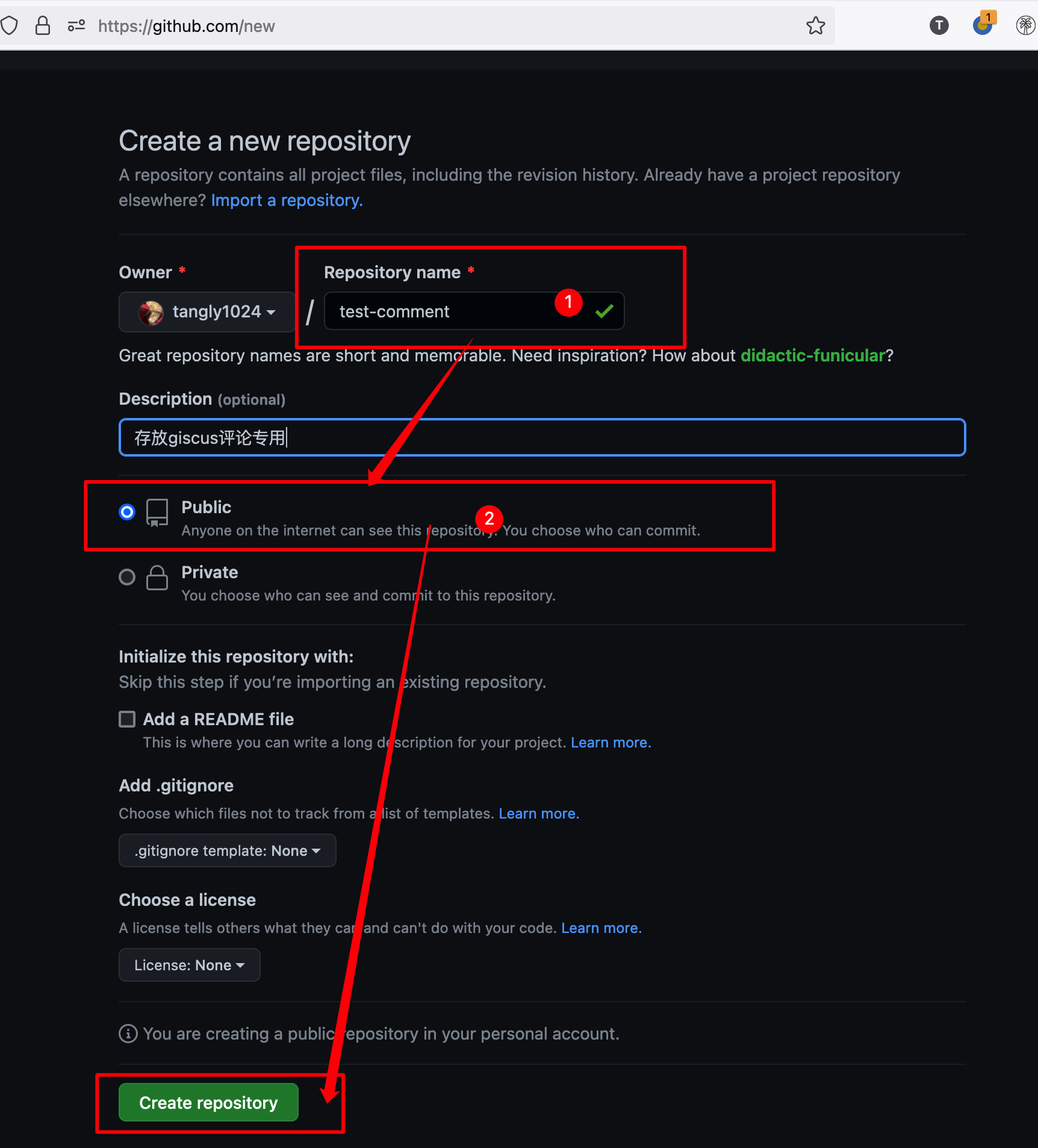
2.在github中安装[utterance插件](https://github.com/apps/utterances)
访问此地址安装:https://github.com/apps/utterances , 点击右上角install即可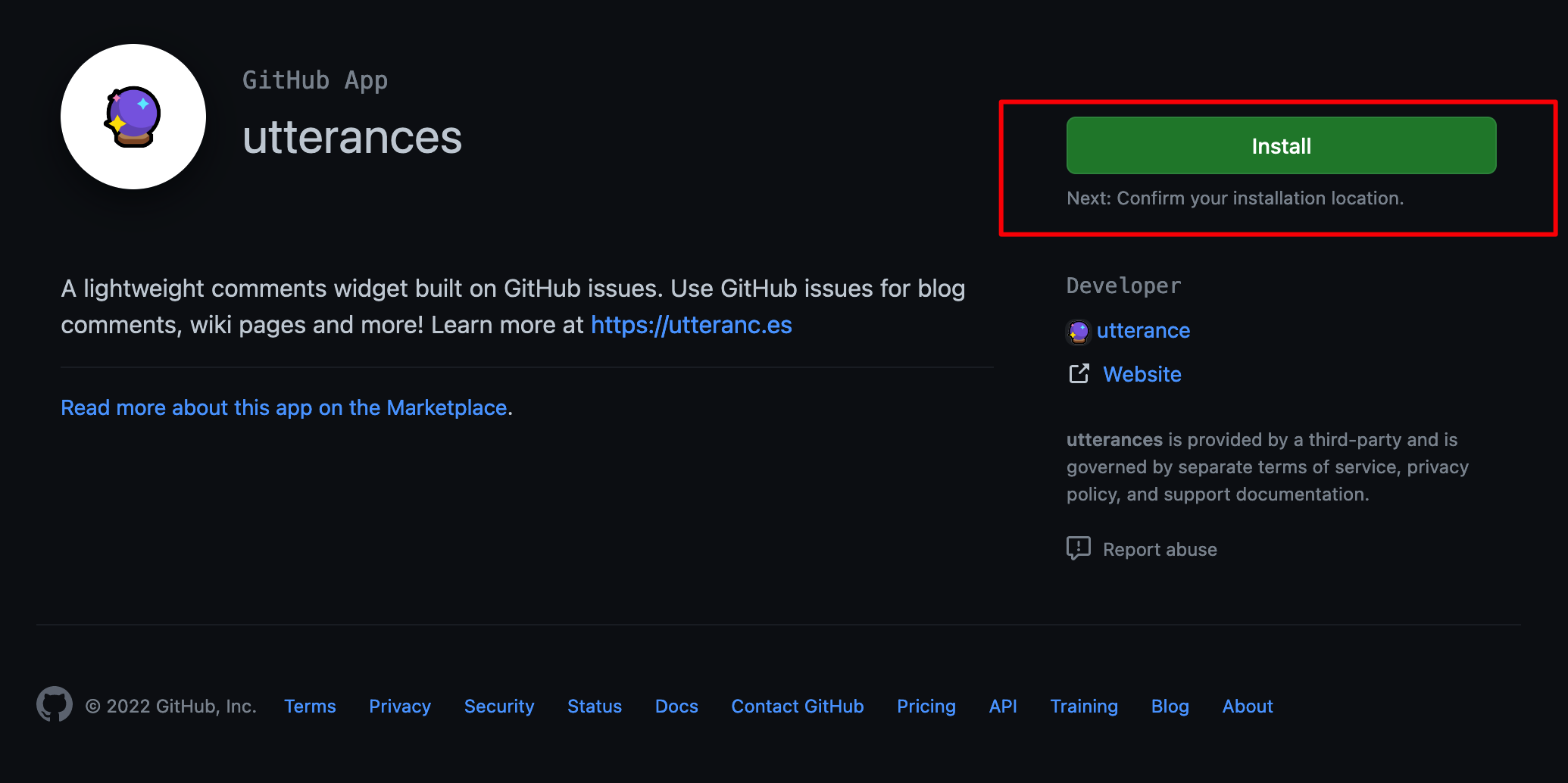 允许utterance访问所有仓库,并勾选install,可以只勾选作为评论用的仓库地址。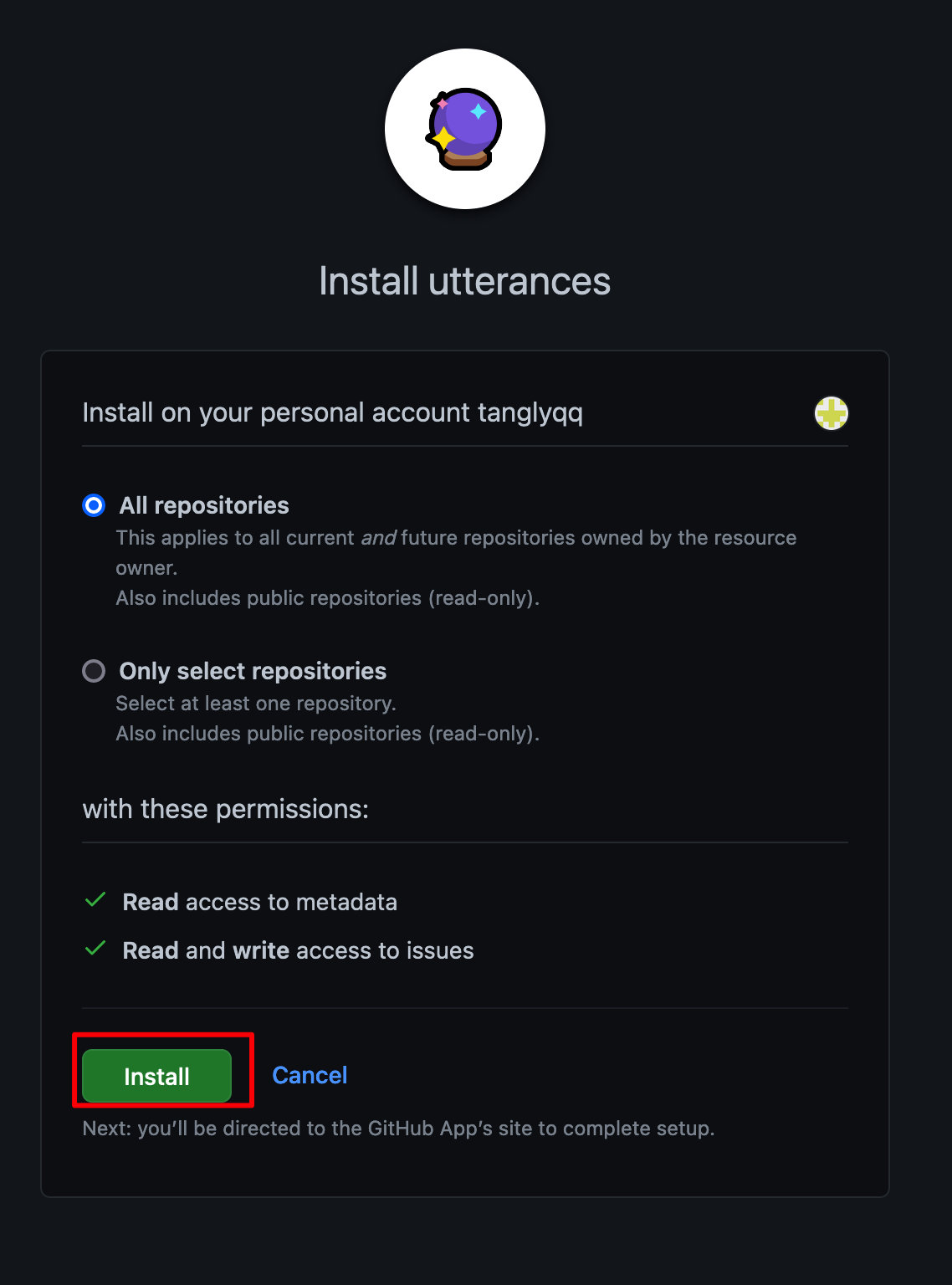
配置NotionNext
只需两步,设置环境变量,重新部署项目。
1.将用作评论仓库名添加到Vercel添加环境变量
后台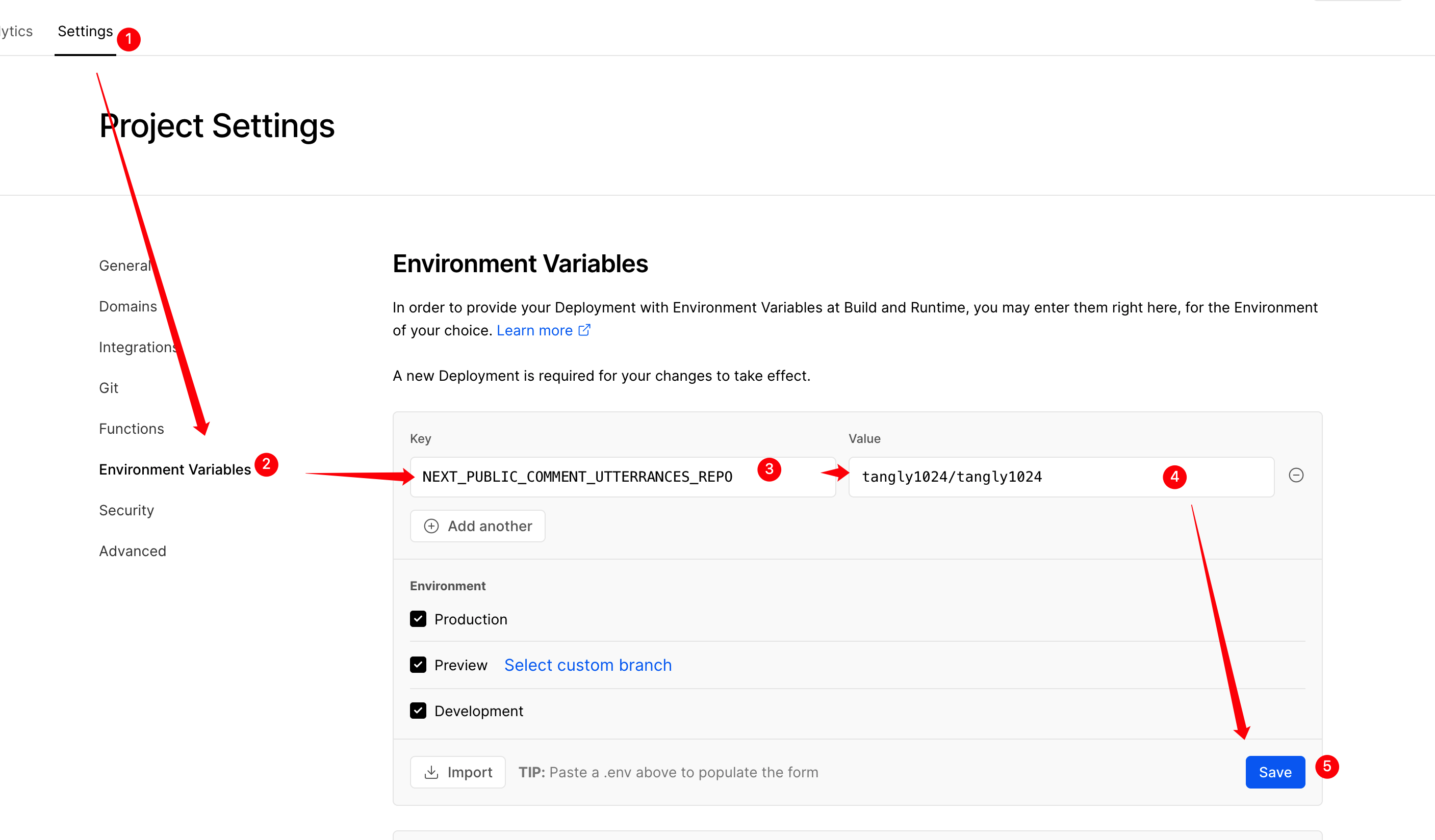
settings→environment variables→ 添加 →save即可。如下图:提示
注意,
仓库名的格式是** [您的用户名/您的仓库名] **如下示例2.添加完环境变量记得`Redploy`项目。
原文链接
https://docs.tangly1024.com/article/notion-next-utterance